Visual Boh AI Studio: Node-Based AI Workflows for Architects
Visual Boh AI Studio (Flow) is a subscribers-only visual pipeline board: a Comfy/n8n-style node canvas that chains Boh AI models together — render, edit, day/night conversion, Super Boh, video, and more — into one runnable, reusable workflow without returning to the sidebar for every step.
Who is it for?
Building full architectural pipelines (render → edit → evening conversion → video), A/B branches, and one-click Run of a ready flow
How it works — step by step
- From the sidebar open “Visual Boh AI Studio” (subscribers). The full-screen flow board opens.
- Start from a professional blank canvas with “Blank canvas (Pro)” if you want to build from scratch without a template.
- From the in-studio sidebar add models as Nodes: Imagine a scene, Edit, Super Boh, Convert to evening/morning, Video, and others.
- Tune each node’s settings inside the node (resolution, aspect, quality, conversion intensity…) — the node title shows the model name only.
- Wire outputs to inputs by dragging from a port to another. Wiring is many-to-many: one node can feed several others, and multiple sources can fan into one node when needed.
- Use magnet snap for cleaner wires, zoom / Fit, and Undo / Redo while designing.
- Press Validate to confirm the graph is complete, then Run to execute in order and deduct points only for nodes that actually run.
- When nodes finish: images stay inside Flow only (not saved to Archive). Videos download automatically. A footer reminder asks you to Export the workflow so you can reopen it later — and you can also use “Download results”.
- Click any result image to open the Lightbox with enhance / save / close. For video, use the enlarge control on the card.
How to get the best result
Treat Flow as a step factory: each node = a Boh AI model, each wire = passing a result to the next step. Build left-to-right (source → process → output), and do not press Run until required inputs (image / prompt) are filled on the nodes that need them. Video = Super Boh 3.7 Video (Image→Video · 10s · 80 points limited time) — an image is required before Run. Save the graph via Export / autosave draft, and download assets you care about — Archive does not receive Flow images.
Pro tips
- A subscription is required — the button may be visible, but real use is for subscribers.
- There is no Final Output node inside Flow; use the image/video nodes available in the catalog.
- Day/night conversion options (intensity, mood, sky) live in the node settings, matching the main app modals.
- Unconnected nodes will not run — wire the full chain before Run.
- Stop cancels an in-progress run — useful during long video jobs.
- JSON Export is the reliable way to restore the full project later.
- Download results packs every successful image/video — ideal after multi-branch flows.
- Flow images intentionally skip Archive — rely on Export + downloads.
- The Help button in the header explains UI pieces without leaving the board.
- Switch soft / dark canvas themes for long sessions.
Example
Example path: Blank Pro → Imagine a scene node → wire to Edit Scene (change flooring) → wire to Convert to evening → wire to Video (80 pts limited time, camera-motion prompt) → Run → Export workflow + Download results.
FAQ
What is "Visual Boh AI Studio" in Boh AI?
Visual Boh AI Studio (Flow) is a subscribers-only visual pipeline board: a Comfy/n8n-style node canvas that chains Boh AI models together — render, edit, day/night conversion, Super Boh, video, and more — into one runnable, reusable workflow without returning to the sidebar for every step.
Who is this tool for?
Building full architectural pipelines (render → edit → evening conversion → video), A/B branches, and one-click Run of a ready flow
How do I get the best result?
Treat Flow as a step factory: each node = a Boh AI model, each wire = passing a result to the next step. Build left-to-right (source → process → output), and do not press Run until required inputs (image / prompt) are filled on the nodes that need them. Video = Super Boh 3.7 Video (Image→Video · 10s · 80 points limited time) — an image is required before Run. Save the graph via Export / autosave draft, and download assets you care about — Archive does not receive Flow images.
Can I try it for free?
Yes. Create a free Boh AI account with your email and get welcome points to try the platform, then pick a plan when you need more. Some advanced tools are available to subscribers only.
Does it support Arabic and English?
Yes. Boh AI is fully bilingual (Arabic & English): interface, guides and results — write your request in either language.
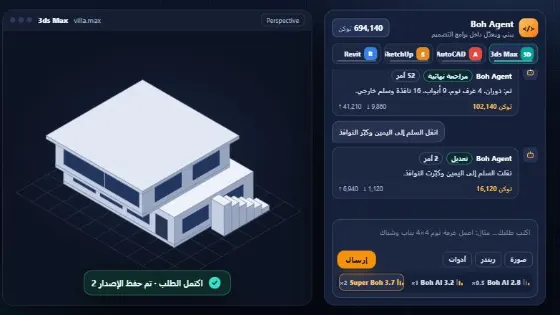 Boh Agent: AI Agent inside 3ds Max, AutoCAD, Revit & SketchUp
 AI Architect Assistant — Ask Any Design or Site Question
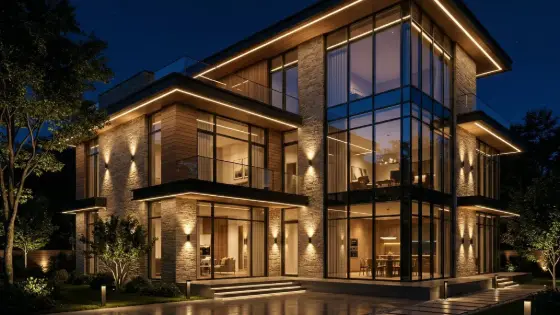 Super Boh — Professional AI Architectural Rendering
 Text to Architectural Render with AI
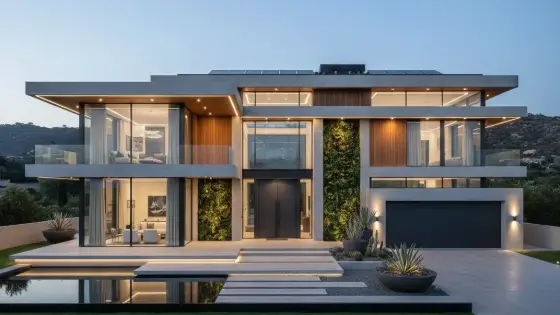 AI Architectural Render Enhancer
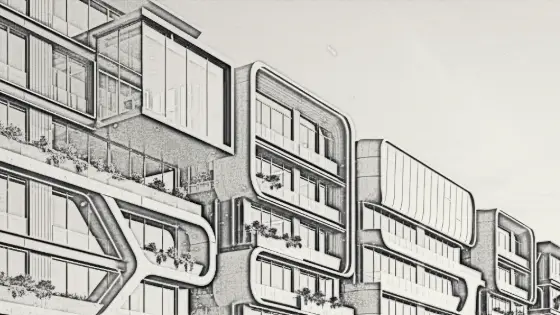 Image to Architectural Sketch with AI